
How to use Liftory from Claude
Connect Liftory to Claude and ask in plain words: who you are in Liftory and who you coach, a new plan, a summary of your messages. Claude asks before it uses Liftory, and the same connection is available in Claude's apps.
Open Liftory in ClaudeStep by step
Find Liftory in Claude's directory
In Claude, open Customize, then Connectors, and search for Liftory under Discover. Open the Liftory listing and select Connect to Claude.
Open Liftory in Claude's directory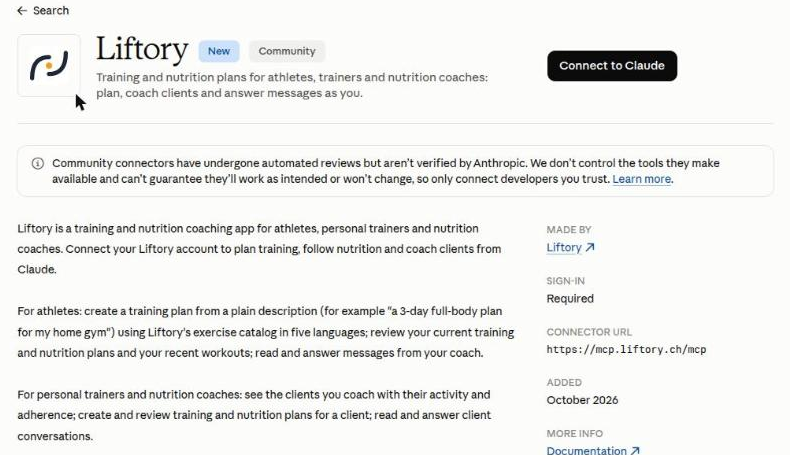
Allow access on Liftory's own page
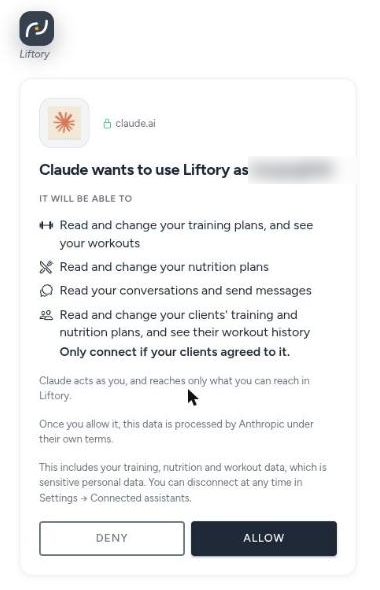
Connect opens a Liftory page that names the account Claude will use: "Claude wants to use Liftory as" and your email. It lists what Claude will be able to do: read and change your training plans and see your workouts, read and change your nutrition plans, and read your conversations and send messages. If you coach, it can also read and change your clients' training and nutrition plans and see their workout history, so only connect if your clients agreed. The page also says that once you allow it, this data is processed by Anthropic under their own terms. Select Allow and you are back in Claude, which confirms it is connected to Liftory.
Start with who you are
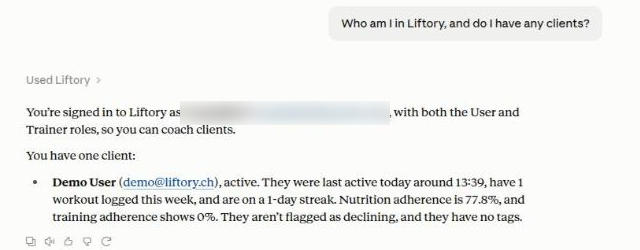
Ask "Who am I in Liftory, and do I have any clients?" Claude answers with your profile and your roles and, if you coach, lists your clients with their recent activity and adherence. The same connection is available in Claude's apps.
Build a plan, then decide when it starts
Ask for the plan you want, for yourself or for a client you coach, for example "Create a 3-day full-body training plan for Demo User with dumbbells only, about 45 minutes per session. Show it to me before saving." Claude shows the plan and saves nothing until you confirm. A plan you save as upcoming does not replace the one in use: the active plan stays active.

Catch up on messages
Ask "Do I have any unread messages in Liftory? Summarize them, but don't reply yet." Claude summarizes what is waiting, sends nothing, and leaves the messages unread.
Claude asks before it uses Liftory
Before Claude uses Liftory for a step, such as reading your plans or saving a new one, it asks, and you choose Decline, Always allow, or Allow once. Claude acts as you and reaches only what you can reach in Liftory. For a coach, that means only the clients who currently give you coaching access.

Disconnect at any time
Remove the Liftory connector in Claude. Or, in the Liftory app, open Settings, then Connected assistants, and select Disconnect next to Claude. Access stops within a minute.


Your next PR starts here.
Free for athletes. Pro plans for trainers and studios.
Available in Switzerland. Expanding across Europe in 2026.