
How to use Liftory from Google Antigravity
Install the Liftory plugin in Google Antigravity and ask in plain words: who you are in Liftory and who you coach, a client's current plan, a new plan. Antigravity asks before each Liftory tool it runs.
Get the Liftory plugin for AntigravityLiftory is being submitted to the Antigravity Marketplace. Until it is listed, install it from its public repository.
Step by step
Install the Liftory plugin
Run the line below in a terminal. It installs Liftory's skills and adds the Liftory server, https://mcp.liftory.ch/mcp, to Antigravity.
See the plugin on GitHubagy plugin install https://github.com/liftory/liftory-antigravitySign in from Antigravity
In a terminal, start Antigravity with the first line below, then type the second to list its servers. Liftory is listed as Auth Needed. Press Enter on it and choose Authenticate. Your browser opens Liftory's own page. If you are signed out of Liftory, sign in first.
agy agy/mcpMCP ServersPlugins (~/.gemini/config/plugins)> ✗ liftory_liftory error: calling "initialize": sending "initialize": Unauthorized [Auth Needed][Restart] Disable AuthenticateAllow access on Liftory's own page
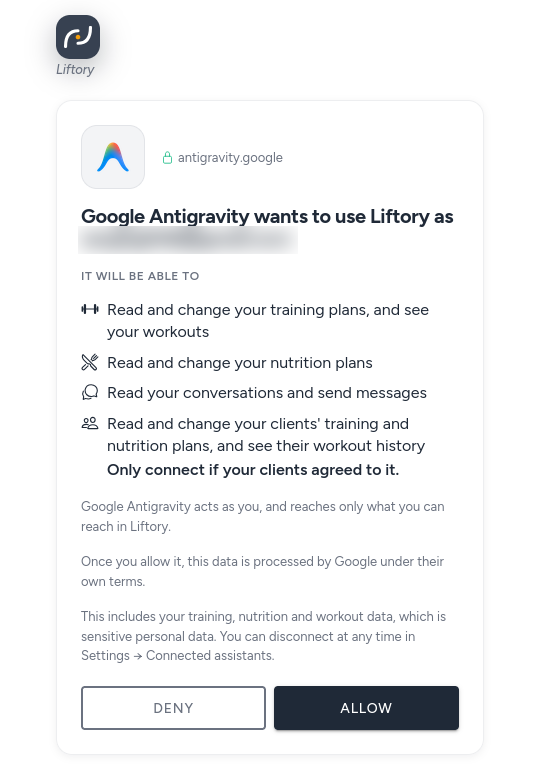
The page names the account Antigravity will use: "Google Antigravity wants to use Liftory as" and your email. It lists what Antigravity will be able to do: read and change your training plans and see your workouts, read and change your nutrition plans, and read your conversations and send messages. If you coach, it can also read and change your clients' training and nutrition plans and see their workout history, so only connect if your clients agreed. The page also says that once you allow it, this data is processed by Google under their own terms. Select Allow.
Paste the code into Antigravity
Antigravity's page then shows a code. Select Copy to Clipboard and paste the code into agy, where it asks for the authorization code. Antigravity says Authentication successful!, and /mcp now shows Liftory as Authed, with its tools.
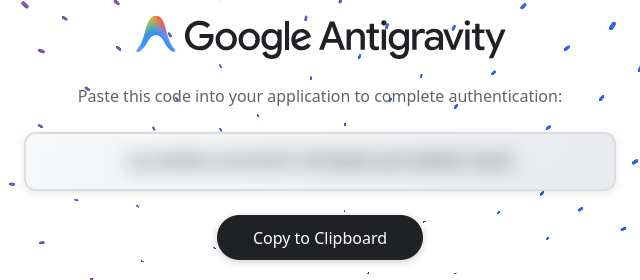
agy # paste the code from your browser where agy asks for it, then press EnterAuthentication successful!Start with who you are
Ask "Who am I in Liftory, and which clients do I coach?" Antigravity answers with your profile and your roles and, if you coach, lists your clients with their recent activity and adherence. To see what a client follows now, ask for their plan, for example "Show Demo User's current training plan, day by day."
agy Who am I in Liftory, and which clients do I coach?### Your Liftory Profile• Display Name: Your name• Email: you@example.com• Roles: User, Trainer### Coached ClientsYou currently coach 1 client:• Name: Demo User• Email: demo@liftory.ch• Status: Active• Activity Overview:• Workouts this week: 1• Current streak: 1• Nutrition adherence: 77.8%• Last active: October 14, 2026 at 09:43 UTCBuild a plan, then decide when it starts
Ask for the plan you want, for yourself or for a client you coach, for example "Create a 3-day full-body training plan for Demo User with dumbbells only, about 45 minutes per session. Show it to me before saving." Antigravity shows the plan and asks whether it looks good, and whether to activate it or save it as upcoming. A plan saved as upcoming does not replace the one in use: the active plan stays active.
agy Create a 3-day full-body training plan for Demo User with dumbbells only, about 45 minutes per session. Show it to me before saving.…### Day 3: Full Body (Unilateral & Hypertrophy Focus)• Dumbbell Single Leg Split Squat (Upper Legs / Quads, Glutes) - 3 sets × 10 reps (90s rest)• Dumbbell Lying Hammer Press (Chest) - 3 sets × 10 reps (90s rest)• Dumbbell Incline Row (Back) - 3 sets × 10 reps (90s rest)• Dumbbell Stiff Leg Deadlift (Upper Legs / Hamstrings) - 3 sets × 10 reps (90s rest)• Dumbbell Standing Triceps Extension (Upper Arms / Triceps) - 3 sets × 12 reps (60s rest)### Next Steps1. Does this plan look good, or would you like to make any adjustments?2. Once approved, should this plan be set as active immediately for Demo User, or saved as an inactive/upcoming plan?Antigravity asks before each Liftory tool
Before Antigravity runs a Liftory tool, such as saving the plan, it asks "Allow calling this tool?". Choose Yes, allow tool call to allow it this one time. Antigravity acts as you and reaches only what you can reach in Liftory. For a coach, that means only the clients who currently give you coaching access.
agy liftory_liftory/create_planAllow calling this tool?> 1. Yes, allow tool call2. Yes, and always allow tool 'liftory_liftory/create_plan' in this conversation3. Yes, and always allow tool 'liftory_liftory/create_plan' (Persist to settings.json)4. No, deny tool call5. No, and always deny tool 'liftory_liftory/create_plan' in this conversation6. No, and always deny tool 'liftory_liftory/create_plan' (Persist to settings.json)Disconnect at any time
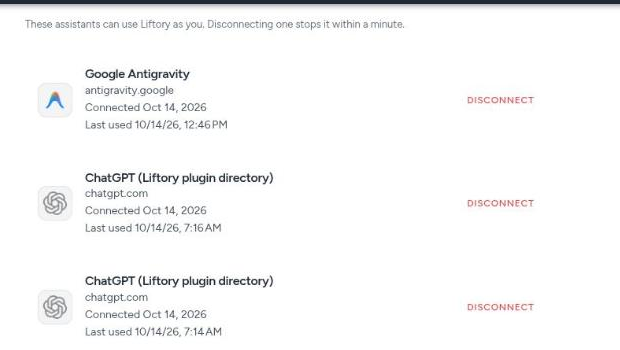
In the Liftory app, open Settings, then Connected assistants, and select Disconnect next to Google Antigravity. Access stops within a minute.
Why Antigravity, and not the Gemini app
Google says custom apps in the Gemini app are only for users in the US aged 18 or over with a personal account, in English. That is why this guide uses Google Antigravity.


Your next PR starts here.
Free for athletes. Pro plans for trainers and studios.
Available in Switzerland. Expanding across Europe in 2026.