
How to get paid for your training sessions in Liftory
Connect Stripe once, price what you sell, and get paid by card straight into your own Stripe account. Step by step, from the Coach Agreement to the cash you collect yourself.
Step by step
Accept the Coach Agreement
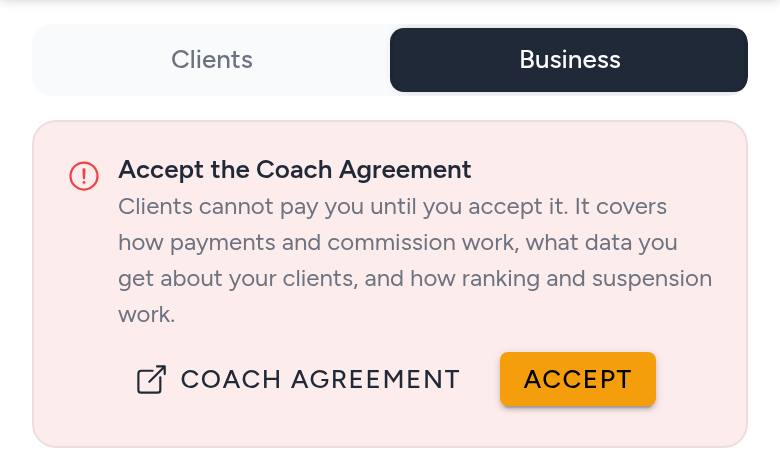
Open your coach dashboard and switch to the Business tab. At the top, a banner asks you to accept the Coach Agreement: read it with the Coach Agreement link, then tap Accept. It covers how payments and commission work, what data you get about your clients, and how ranking and suspension work. Clients cannot pay you until you accept it.
Connect Stripe under How you get paid
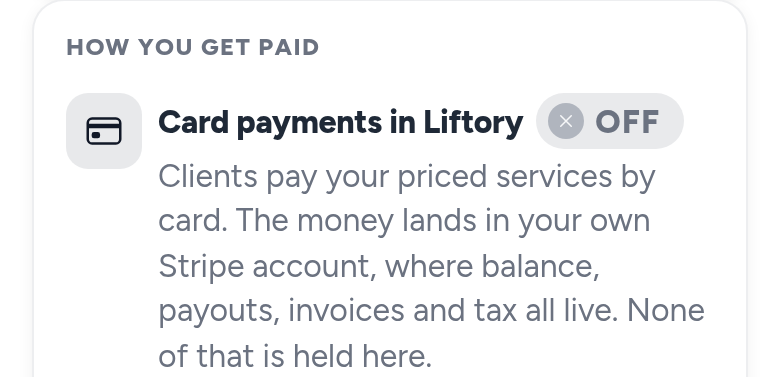
Further down the same tab, Card payments in Liftory reads OFF. Tap Finish setup and Stripe takes over on its own pages: who you are, your business details and your bank account. On a phone they open in a browser over the app. When you are done you are back on the Business tab, and card payments switch to ON by themselves, with nothing to refresh.
Finish the form, or carry on later
Tapping Finish setup creates your Stripe account, but you are paid only once you complete Stripe's form. Leave it half done and card payments still read OFF, because a client cannot pay you yet. Tap Finish setup again to carry on where you left off. Once card payments are on, the same button reads Open Stripe.
Give Stripe your Liftory page as your website
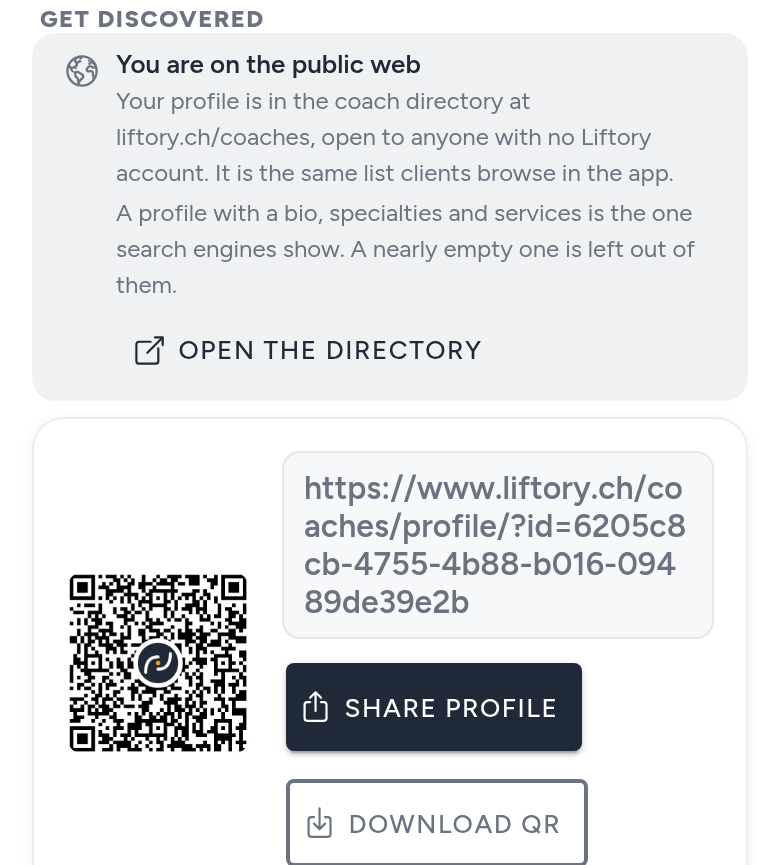
Stripe asks for a business website. If you do not run your own, give it your public Liftory page: copy the link printed under Get discovered, further down the Business tab, exactly as it is. It opens for anyone without an account, describes what you sell, and works from the day you register.
Decide what you sell, and for how much
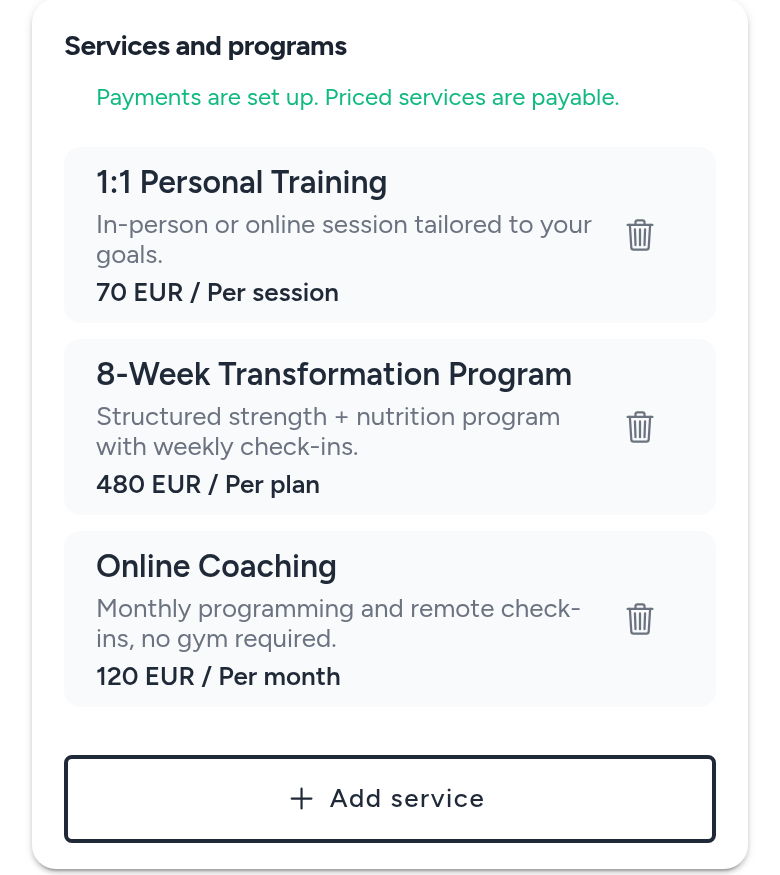
Open Settings, then Professional profile, and scroll to Services and programs. Tap Add service and give it a name, a short description and a price. Sell it per session, so a client buys first and books afterwards; per plan, a package with the number of sessions it includes; or per month, which makes it a subscription. The session length decides which of your hours it fits into. A line above the list tells you whether priced services can be paid yet.
Free is a real offer too
An intro call or a form check can be Free: it is booked exactly like a paid service, nobody pays, and it needs no Stripe setup at all. Every new service starts as Not for sale, which describes what you do but cannot be booked, so pick Free or set a price for anything you want clients to book.
Your client confirms, then pays on Stripe
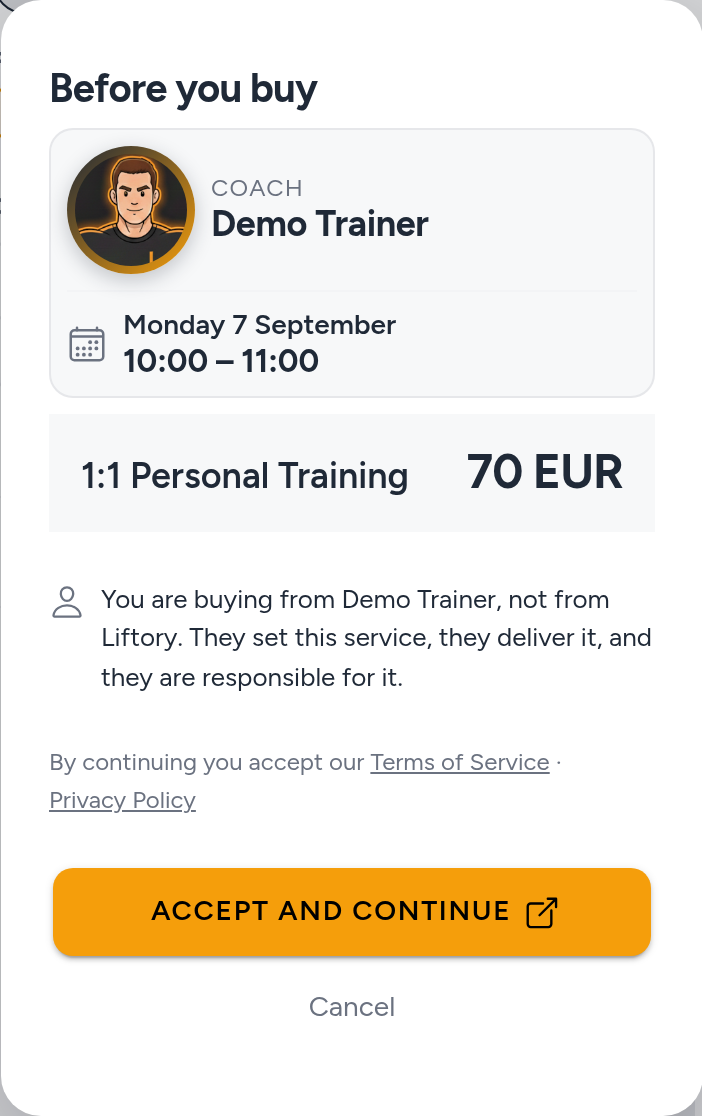
Your profile lists what you sell and what it costs. Before paying, your client sees the hour, the service, the price, and a line saying they are buying from you, not from Liftory. They pay by card on Stripe's own pages, in their own language, on the web or straight from their phone, and come back to Liftory while the payment is confirmed.
The money lands in your own Stripe account
Every card payment is made directly on your Stripe account. Liftory takes its commission and the rest is yours, paid out to your bank on Stripe's schedule, with nothing to claim or withdraw. Balance, payouts, invoices, receipts and tax live in your Stripe dashboard. What Liftory charges is written under Card payments on your Business tab, and its terms are in the Coach Agreement.
Sessions and bookings
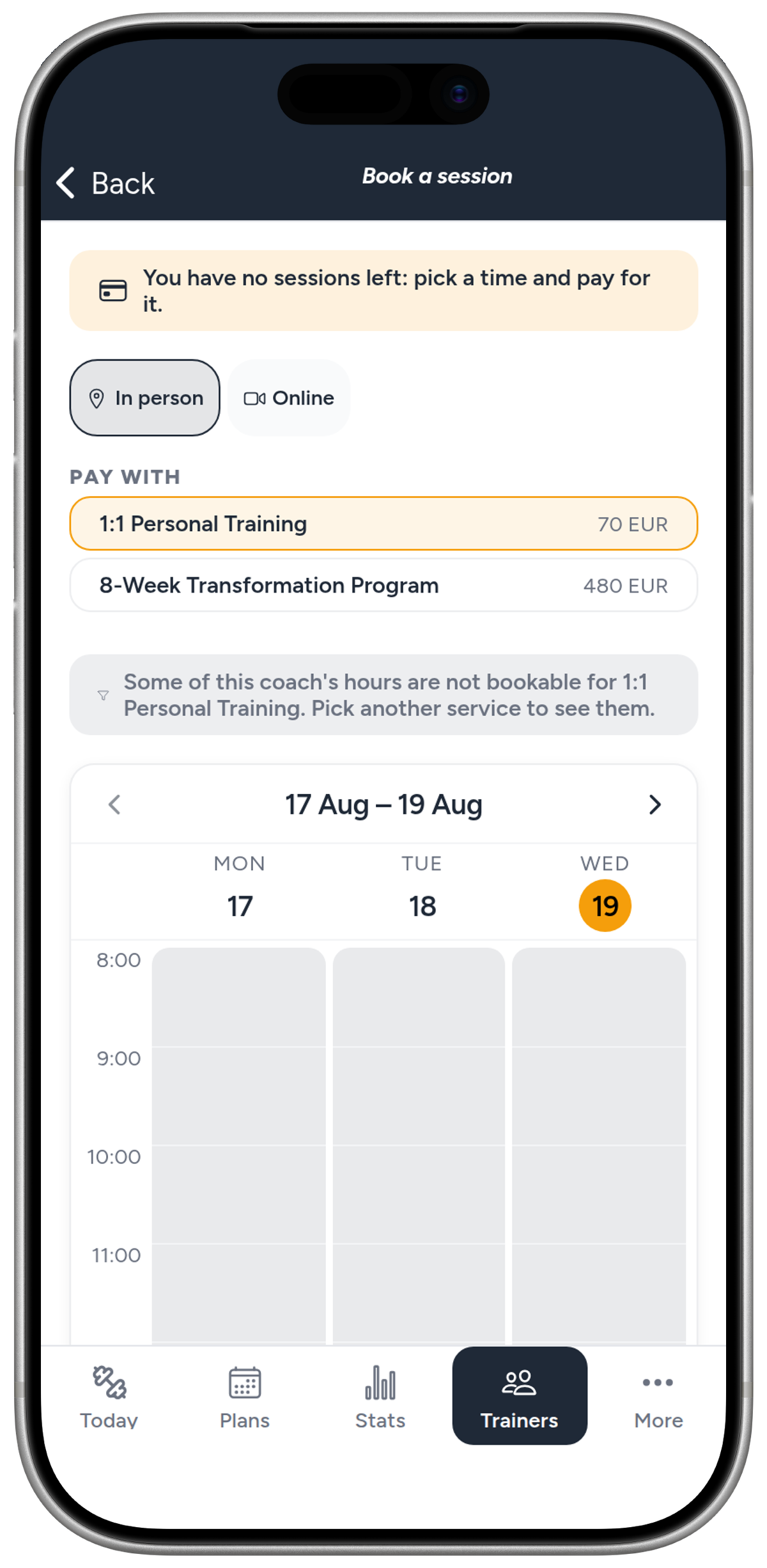
A per-session purchase adds one session to that client's balance with you, a plan adds the sessions it includes, and a monthly service starts the coaching without a balance. Every booked hour uses one session. A client with nothing left can pick an hour and pay for it right there: the hour is held for them while they pay, shows on your calendar as Awaiting Payment, and becomes a confirmed session as soon as the payment goes through.
Follow your month on the Business tab
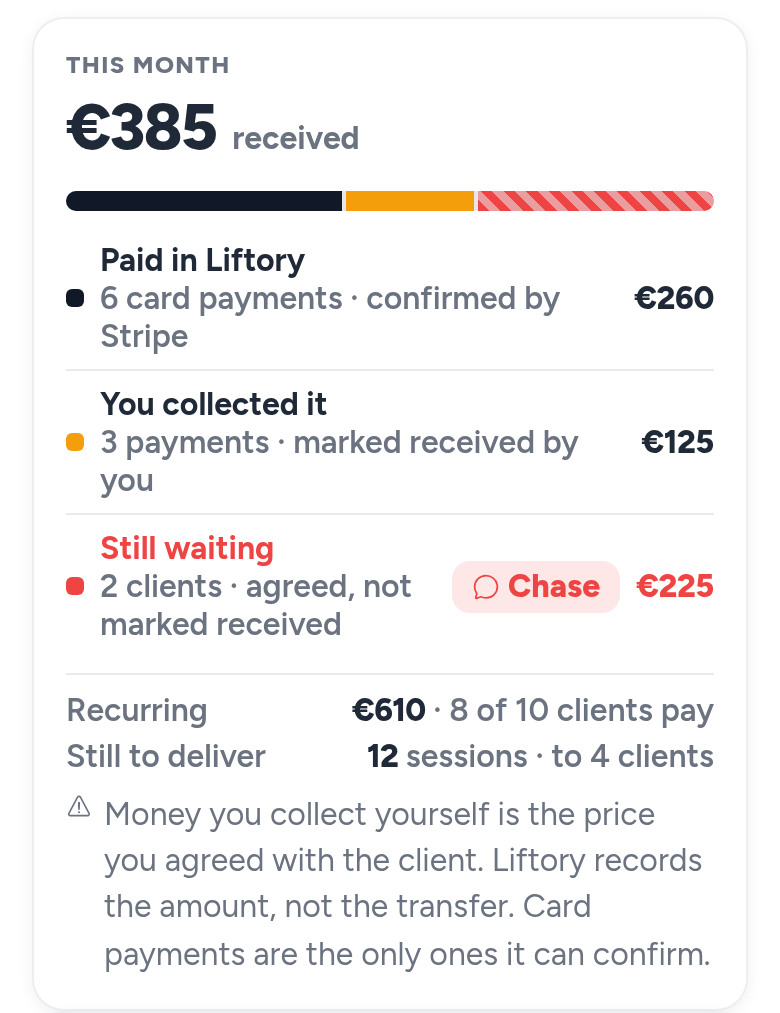
This month shows what has arrived: Paid in Liftory for card payments confirmed by Stripe, You collected it for payments you marked yourself, and Still waiting for clients who agreed a price and have not been marked paid, with a Chase button that opens them in your client list. Card payments and money you collect are counted apart, so your total never mixes the two.
Cash and transfers you collect yourself
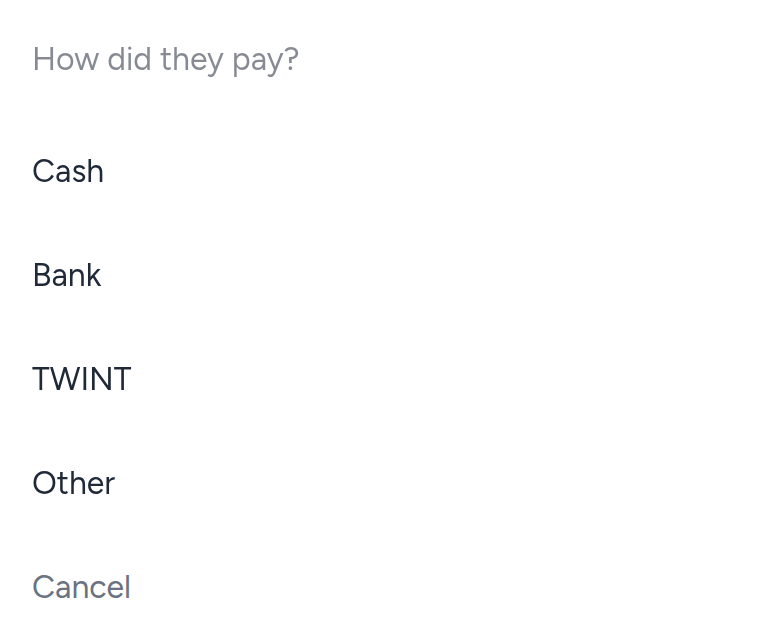
Card payments and money you collect yourself can run side by side, per client and per service. When a client pays you outside the app, open them and tap Mark paid, choose how they paid (cash, bank, TWINT or other), then enter the amount. Liftory records it, and takes no commission on money it never touches.
Refunds go through Stripe
Refunds are settled between you and your client, from your own Stripe dashboard. After a full refund, Liftory takes back the sessions that purchase added and adjusts your income, and the booked hour stays in your calendar. After a partial refund nothing changes on its own: use Adjust on the client's page if they should have fewer sessions.


Your next PR starts here.
Free for athletes. Pro plans for trainers and studios.
Available in Switzerland. Expanding across Europe in 2026.